Sunday, August 28, 2016

Class Not Found Exception when deploying BPM Process

as usual when any developer meet ClassNotfoundException through his deployment of EAR , he will be confused about the reason of this issues . the first reason might come to your mind is missing jar  , which will be the right solution in most of cases but not this case !

today i have faced the following exception  : 

weblogic.application.ModuleException: java.lang.ClassNotFoundException: org.apache.myfaces.trinidad.webapp.TrinidadConverterELTag

as you may expect i started with looking jars and checking weblogic.xml to find any missing jar or reference without any hope .

finally , the solution came from smart colleague and it was simple and direct and it just recreation the Ear profile and use it to deploy again and everything has worked like charm !


Sunday, August 21, 2016

Fill Multi language Select One Choice from Table using java Bean

In this article i will show how to fill Select one Choice component from database based on Default browser language .
  • Create Table with name "Lov" that contains two languages columns for display text . as show below :
   

  • Create jspx page and create java bean for it
  • inside the java bean define Selecitems object as follow:                                                                             private List listOfItems = new ArrayList();
  • drag drop selectonechoice component to your page the following dialog will appear to determine the list that your SOC will reference to
  • choose First option and click Bind and map to listOfItems in your java bean then click next . in the next form fill the label text and requiredmessagedetails


  • Generate the accessors
  • i suppose that Lov List will be changed based on Browser language , to catch the current language i have added Resource key with name "language"  inside the available Bundles then i will read the value of this key every time i need to check the language .                                                    
                                                                                                                                                 
  • in getListOfItems add the following Code                                                                                   public List getListOfItems() throws SQLException                                                                                                                {                                                                                                                                                                                        Connection DBConn = DriverManager.getConnection("jdbc:oracle:thin:@localhost:1521:xe","user","password");
                          Statement statement = null;                                                                                                                        
                          statement = DBConn.createStatement();                                                                                                    
                          FacesContext context = FacesContext.getCurrentInstance();                                                                        
                          String Lang = context.getApplication().evaluateExpressionGet(context, "#{bundle['language']}", String.class);
                          // or use  Locale browserLocale = FacesContext.getCurrentInstance().getViewRoot().getLocale();
                          // browserLocale.getDisplayLanguage() ;
                          String strQuery =null ;
                          if (Lang=="en")
                             {                                                                                                                                                                
                                  strQuery = "select ID, EN_Name Lov_Name from Lov" ;
                              }
                          else
                             {
                                  strQuery = "select ID, AR_Name Lov_Name from Lov" ;
                              }
                         ResultSet rs = statement.executeQuery(strQuery);
                       
                         while (rs.next())
                            {
                               SelectItem si = new SelectItem();
                               si = new SelectItem();
                               si.setLabel(rs.getString("ID"));
                              si.setValue(rs.getString("Lov_Name"));
                              listOfItems.add(si);
                            }
                return listOfItems;
    }


  • to test your code change the language of Browser to see the effect

Sunday, June 5, 2016

handling the outcome of serial/Parallel approval human task

in some cases and to avoid creating many ADF pages for the same functionality (same human Task) you may go to use Complex Human Task also you will include many users or roles as serial or parallel or mix of Both . please see image below :

There is no problem when participant click Approve , where task simply will move to the next participant , on contrast we must stop the whole task and go in alternative path if any participant reject the task , to do that we have to use Early Completion feature and check the three checkboxes explained below .


This Feature allow Task to be ended early and exit when certain condition happened such Reject or Approve and no need to pass through next participants.

Saturday, June 4, 2016

Monitoring Composite Applications with Sensors and Oracle BAM (1-3) - Composite Sensors

in this series of articles i will discuss monitoring composite applications using Sensors (composite & BPEL)  , in the last part , i will go in short tour to explain integration with oracle BAM.

Sensors Definition :

A sensor is an Oracle construct that enables users to monitor key execution points or data in their composite application. 

There are two types of sensors:
• Composite application
• BPEL

Sensors are associated with sensor actions that can send data
to different publish types:
• Database
• JMS destination
• Custom (Java)
• BAM  

Composite Sensors :

Composite sensors are defined on service and reference binding components. They provide a method for implementing trackable fields on incoming and outgoing messages.


Composite sensor actions enable you to:
• Specify composite sensor details in the search utility of the Instances page of      a SOA composite application in the Oracle Enterprise Manager Fusion                Middleware Control console. This action enables you to locate a particular          instance.
• Publish JMS data computed from incoming and outgoing messages

Composite ِSensors Actions :
Composite sensors support only two types of sensor actions: 

  • Enterprise Manager
  •  JMS.


Select Enterprise Manager to make runtime sensor data searchable on the Instances tab of a 
SOA composite application in the Oracle Enterprise Manager Fusion Middleware Control console. 

Note: When Enterprise Manager is selected, sensor data is sent to the trackable fields tables. When it is not selected, data is not sent. However, in both cases, the Oracle Enterprise Manager Fusion Middleware Control console still displays the fields that enable you to search for composite instances based on that sensor.

The JMS Queue and JMS Topic selections enable the composite sensor data (XML payload) to be used by other consumers, including Oracle Business Activity Monitoring and Oracle Complex Event Processing (CEP). Both selections use the native JMS support provided with Oracle WebLogic Server, and not the Oracle SOA Suite JMS adapter described in the Oracle Fusion Middleware User’s Guide for Technology Adapters. You can view JMS messages in the Oracle WebLogic Server administration console.

SOA Composite Example : 
in this section i will create example to show how Composite Sensors works .

  • Create SOA Application from Jdeveloper with name "TestCompositeSensorsApp"
  • Create SOA Project And name it "TestCompositeSensorsProj"
  • Drop BPEL component on composite 
  • Drop Assign Component inside BPEL to simply connect input string to output
  • Go to Composite.xml an click composite Sensor Icon 
  • Create New Sensor and give name , Expression and Filter 

  • click ok and deploy !
  • go To EM
  • test web service with inputs test,test1,test2,test (4 times)
  • Click Flow instances Tab
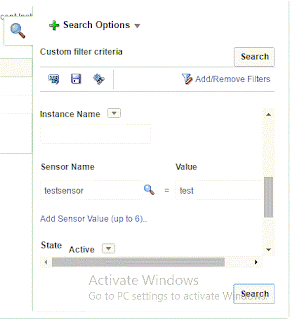
  • in Search option Click Add/remove Filter --> check Flow Instance option
  • Add the sensor you want and Search instances


Saturday, May 21, 2016

Oracle BPM 12c Events

In this post i would like to share nice series of articles about BPM events (start, End and intermediate) this articles has been written by Antonis (oracle ACE) see Blog . you can browse articles from the following links :

http://antonis-antoniou.blogspot.com/2015/01/oracle-bpm-12c-events-part-1-of-3-start.html

http://antonis-antoniou.blogspot.com/2015/04/oracle-bpm-12c-events-part-2-of-3-end.html

http://antonis-antoniou.blogspot.com/2015/07/oracle-bpm-12c-events-part-3-of-3.html

actually it's nice articles and cover the topic in very attractive way .


Tuesday, March 8, 2016

calling attachment Dialog in BPM human Task pages 12c

in 12c , oracle has changed the way that deal with attachments instead off tables they have added new component with name managedocument .

the way of deal with this control still not clear because the lack of resources and when i try to call attachment of dialog i did not find way for that , finally i found the solution by finding it from inspector then calling it using findcomponet method and that's worked .

to call the attachment dialog you have to use code like below :

 RichPopup attachmentDialo = (RichPopup)manageDoc.findComponent("newAttachmentPopup");
 RichPopup.PopupHints ph = new RichPopup.PopupHints();
        attachmentDialo.show(ph);


Thursday, February 11, 2016

Change the branding Logo for BPM Workpace 12C

in this post i will show in details and through clear steps how to change branding log for oracle workspace :

1- first of all create new folder for example mylogowork
2- inside newly created folder create 2 sub folders with names subEar & subwar
3- copy the OracleBPMWorkspace.ear file from C:\Oracle\Middleware\Oracle_Home\soa\soa\applications to subEar
4-Extract EAR file using java jar tool using the following command

C:\Users\alaayacoub\Desktop\mylogowork\subEar>"C:\Program Files\Java\jdk1.8.0_65\bin\jar" c
vf OracleBPMWorkspace.ear  *

5- copy file OracleBPMWorkspace.war to folder subwar
6-repeat step 4 with minor changes

C:\Users\alaayacoub\Desktop\mylogowork\subwar>"C:\Program Files\Java\
jdk1.8.0_65\bin\jar" cvf OracleBPMWorkspace.war *

7- inside folder subwar you will see 2 folder with names img and images and you can set your new image inside any one of them

8- create war file again using jar tool with comman like this

C:\Users\alaayacoub\Desktop\mylogowork\subwar>"C:\Program Files\Java\jdk1.8.0_65\bin\jar" xvf OracleBPMWorkspace.war *

9- copy the new war to folder sub ear and then create new ear file
10- replace OracleBPMWorkspace.ear in oracle home with the new one
11- update the deployment OracleBPMWorkspace in console
12 go to workspace --> administration
13 change the path of logo image to /faces/images/yourimage  save
14- it's worked !