Tuesday, June 11, 2024

Using Batik Library for SVG to PNG Conversion in Software AG Integration Server


Prerequisites:

  1. Ensure you have the necessary JAR files for Apache Batik and its dependencies.
  2. The JAR files must be placed in the code/jars directory of your Integration Server package.

Required JAR Files:

Ensure you have the following JAR files:

  • batik-all-1.9.jar
  • xalan-2.7.2.jar
  • commons-logging-1.2.jar
  • commons-io-2.8.0.jar
  • xmlgraphics-commons-2.2.jar
to avoid any error copy all downloaded JARs into folder code/jars in the package

Steps to Integrate Batik Library

  1. Download JAR Files:

    • You can manually download the required JAR files from this link https://archive.apache.org/dist/xmlgraphics/batik/source/batik-src-1.9.zip
  2. Place JAR Files in Integration Server:

    • Copy the downloaded JAR files to the code/jars directory of your Integration Server package.
           

  1. Restart Integration Server (Optional):

    • Restart the Integration Server to load the new libraries.

Java Service Code for SVG to PNG Conversion

Ensure your Java service is correctly set up to use the Batik library. Here's the code:


import java.io.File; import java.io.FileInputStream; import java.io.FileOutputStream; import java.io.OutputStream; import org.apache.batik.transcoder.TranscoderInput; import org.apache.batik.transcoder.TranscoderOutput; import org.apache.batik.transcoder.image.PNGTranscoder; import com.wm.data.IData; import com.wm.data.IDataCursor; import com.wm.data.IDataUtil; import com.wm.app.b2b.server.ServiceException; public static final void convertSVGToPNG(IData pipeline) throws ServiceException { // Retrieve input parameters from the pipeline IDataCursor cursor = pipeline.getCursor(); String svgFilePath = IDataUtil.getString(cursor, "svgFilePath"); String pngFilePath = IDataUtil.getString(cursor, "pngFilePath"); cursor.destroy(); if (svgFilePath == null || pngFilePath == null) { throw new ServiceException("Input parameters 'svgFilePath' and 'pngFilePath' are required."); } FileInputStream inputStream = null; FileOutputStream outputStream = null; try { // Create a transcoder instance PNGTranscoder transcoder = new PNGTranscoder(); // Set the input File svgFile = new File(svgFilePath); inputStream = new FileInputStream(svgFile); TranscoderInput input = new TranscoderInput(inputStream); // Set the output File pngFile = new File(pngFilePath); outputStream = new FileOutputStream(pngFile); TranscoderOutput output = new TranscoderOutput(outputStream); // Perform the transcoding transcoder.transcode(input, output); } catch (Exception e) { throw new ServiceException("Error converting SVG to PNG: " + e.getMessage(), e); } finally { try { if (inputStream != null) inputStream.close(); if (outputStream != null) { outputStream.flush(); outputStream.close(); } } catch (Exception e) { // Log the error if any e.printStackTrace(); } } }

Test the Service

  1. Create a Flow Service:

    • Create a flow service that calls the convertSVGToPNG Java service.
    • Map the input parameters (svgFilePath and pngFilePath).
  2. Execute the Flow Service:

    • Run the flow service and check if the PNG file is generated correctly.

By following these steps, you should be able to convert SVG files to PNG using the Batik library in Software AG Integration Server without encountering the WriteAdapter error. If you face any issues, ensure that all dependencies are correctly placed and the server is properly restarted.

Monday, May 20, 2024

Configure JDBC connection with Microsoft SQL Server (Integration Server 10.7)

Connection  to MSSQL database is not out of box feature .To apply it first you need to download the JDBC Driver jar from Microsoft site  then you need add it under lib folder and restart the server . 

Lib Path is : C:\yourSAGHome\IntegrationServer\instances\default\lib\jars

After the restart the server will be able to load the new jar and make it available for future use .

Steps in Details

1- 


2-Unzip the file then copy file mssql-jdbc-11.2.3.jre8 to the following paths (in each integration server node) .

        C:\yourSAGHome\IntegrationServer\lib C:\yourSAGHome\IntegrationServer\instances\default\lib\jars

3-Restart the server 4-login to the server and go to Adapters –> webMethods Adapter for JDBC --> 5- click Configure New Connection link then choose webMethods Adapter for JDBC Connection

6-fill configuration details :   


7-Click test connection and enable connect


Enjoy Your SQL Connection !


Sunday, May 19, 2024

Fix issue : Unable to locate or start compiler in webmethod integration server 10.7

In some cases when we try to compile java service using save the following error are showing up :

The source was saved, but was not compiled due to the following errors:

com.wm.app.b2b.server.ServiceException: [ISS.0014.9116] Unable to locate or start compiler


 Resolution : 
Remove the command watt.server.compile=C:\sag107\jvm\jvm\bin\javac -classpath {0} -d {1} {2} from extended settings to enforce use default compiler


Reference :

watt.server.compile
Specifies the compiler command that Integration Server uses to compile Java services that are developed using
Designer

, For example, javac -classpath {0} -d {1} {2}This compiler command is also used from the jcode utility. If this property is omitted or empty, the server uses the JVM internal Java compile tool to compile Java services.

Thursday, January 11, 2018

Exception : this is only psuedo object

Today , i have faced this error when i try to deploy SOA composite to the server from jdeveloper . where the deployment process is failed and i have received this exception in the jdeveloper window log , to overcome this issue i did some searches to find out solution and i found useful link here .

In the above link it suggest that reason of this error is the mismatch between WSDL url in composite and BPEL where one is pointing to server while other to MDS .

however, in my case the problem was removing SOAP component from composite without removing the in\out variables of Invoke after removing the INOKE itself .

when i deleted the variable everything worked and the composite is deployed .  

Saturday, July 22, 2017

Consuming SSL Web service with certificate using oracle SOA 12c

lately , we have received WSDL from client with SSL and certificate and we try to consume this  web service we have faced the following exception :

javax.xml.ws.WebServiceException: javax.net.ssl.SSLKeyException: Hostname verification failed

we quick solve this issue by the following steps :

Servers -> server name -> Configuration SSL tab -> Advanced -> Change Hostname Verification dropdown to None

then we face this exception :
sun.security.validator.ValidatorException: PKIX path building failed: sun.security.provider.certpath.SunCertPathBuilderException: unable to find valid certification path to requested target
our understand was , we need to import certificate into weblogic keystror and  to do that we went to keystrore tab in weblogic to get the path of trust store and we surprised because the concept in 12c is different about 11g . in 11g you will see physical paths while in 12c became urls .

after some research we understood that we have to add the certificate to system\trust keystore from em


but the error did not change so we back to 11g concept and we try . the steps as follow :


  • create key store using keytool
  • import Root,intermediate,client certificate to this key store
  • adding this commands to file set domainenv                                                                                        set JAVA_OPTIONS=%-Djavax.net.ssl.trustStore=fullpath -Djavax.net.ssl.trustStorepassword=yourpassword
  • restart weblogic
and that's all !

Note : after we finish this solution we discovered oracle link that may help to solve first solution issue by the following :


  1. Open FMW_HOME/user_projects/domains/WLS_SOA/bin/setDomainEnv.sh.
  2. In EXTRA_JAVA_PROPERTIES:
    Replace:
    • -Djavax.net.ssl.trustStore=%WL_HOME%\server\lib\DemoTrust.jks
    With:
    • -Djavax.net.ssl.trustStore=kss://system/trust -Djavax.net.ssl.trustStoreType=kss

but i did not try it so i strongly advice to try this first before go to 11g approach .


Note2 : a i did not include keytool commands to create keystore and import certificate because it's available everywhere .


finally , i would like to thank my colleague Mohannad click here for his support .


Saturday, February 18, 2017

Integration with Knet Payment Gateway - Pin Pad Device

in this article series i will suggest way to control Pinpad Device (payment through device) from ADF application . the story started when we received java Api (jar) from knet payment Gateway (Kuwait payment gateway ) , with target to implement it through ADF application .

first approach was implementing it using java applet which not worked because java Applet became out dated . we looked to alternative solutions but we failed .

later , we found implementation using windows service (hosting Wcf over windows Service) but the challenge still exist because we don't have dll . so we converted the jar to dll .  

the proposed solution have the following steps :

  1. Convert jar to dll (to convert library from java technology to .net)
  2. develop WCF Service (rest) over windows 
  3. import the Dll and execute the payment process through web operation
  4. run and start windows Service
  5. call the service from java script
Below the details :

conversion library from jar to dll :
we searched a lot to find the appropriate too to do this task . until we found ikvm tool which enable you to convert your jars to dlls and exe (check this)  after downloading and unzipping it you can execute this task using the following command line :

ikvmc your jar.jar

after execution you will find your dll in the same directory , did you find it ? good job 😏
now let us go to the next step .

 Hosting WCF on windows service :
this approach suggested by Microsoft to host web services on end user PC with full privileges to access user resources and hardware check this.

  Create java script Caller :

in this part i will show how to create java script code that should be used to call Rest service that hosted on ADF application  . below sample for it .

<script type="text/javascript">
       function test() 
             {
                var xhttp = new XMLHttpRequest();
                xhttp.open("POST", "http://localhost:8000/ServiceModelSamples/service/knetPayment",                     true) ;
               xhttp.setRequestHeader("Content-type", "application/json");
               
                xhttp.onload = function (e) 
                   {
                      if (xhttp.readyState === 4) 
                           {
                              if (xhttp.status === 200) 
                                       {
                                           alert(xhttp.responseText);
                                        } 
                              else 
                                        {
                                           alert(xhttp.statusText);
                                         }
                               }
                     };
              xhttp.onerror = function (e) 
                    {
                       alert(xhttp.responseText);
                    };
              xhttp.send('{"Amount":"10"}');
              alert("3");
           
         }


    </script>


Enjoy !

Wednesday, November 23, 2016

Create OID User using java SDK

in this article i gonna show java code sample that explain how to create user in OID grammatically .
before taking the code you have to do the following two steps :

  1. Create custom project 
  2. add reference for the following jar ldapjclnt11
now Create Class and copy the following code :


import oracle.ldap.util.*;
import oracle.ldap.util.jndi.*;
import javax.naming.NamingException;
import javax.naming.directory.*;
import java.io.*;
import java.util.*;


public class OIDConnect {
    public OIDConnect() {
        super();
    }
    
    final static String ldapServerName = "xx.xx.xx.xx";
    final static String ldapServerPort = "3060";
    final static String rootdn = "cn=orcladmin";
    final static String rootpass = "password";


    public static void main(String[] args) throws NamingException {
       
       
        // Create the connection to the ldap server
        InitialDirContext ctx = ConnectionUtil.getDefaultDirCtx(ldapServerName, ldapServerPort, rootdn, rootpass);

        // Create the subscriber object using the default subscriber
        Subscriber mysub = null;
        String[] mystr = null;
       
        try 
            {
                RootOracleContext roc = new RootOracleContext(ctx);
                mysub = roc.getSubscriber(ctx, Util.IDTYPE_DN, "dc=xx,dc=xx,dc=xx", mystr);


            } 
        catch (UtilException e) {
            e.printStackTrace();
        }

        // Create ModPropertySet 
        ModPropertySet mps = new ModPropertySet();
        
        
        mps.addProperty(LDIF.ATTRIBUTE_CHANGE_TYPE_ADD, "cn", "John");
        mps.addProperty(LDIF.ATTRIBUTE_CHANGE_TYPE_ADD, "sn", "John");
        mps.addProperty(LDIF.ATTRIBUTE_CHANGE_TYPE_ADD, "objectclass", "person");
        mps.addProperty(LDIF.ATTRIBUTE_CHANGE_TYPE_ADD, "objectclass", "organizationalPerson");
        mps.addProperty(LDIF.ATTRIBUTE_CHANGE_TYPE_ADD, "objectclass", "inetOrgPerson");
        mps.addProperty(LDIF.ATTRIBUTE_CHANGE_TYPE_ADD, "objectclass", "orclUser");
        mps.addProperty(LDIF.ATTRIBUTE_CHANGE_TYPE_ADD, "objectclass", "orclUserv2");
        
        mps.addProperty(LDIF.ATTRIBUTE_CHANGE_TYPE_ADD, "givenname", "John");
        mps.addProperty(LDIF.ATTRIBUTE_CHANGE_TYPE_ADD, "userPassword", "xxx");
        mps.addProperty(LDIF.ATTRIBUTE_CHANGE_TYPE_ADD, "uid", "John");

        // Create the user
        User newUser = null;
        try {
            newUser = mysub.createUser(ctx, mps, false);
            
        
            System.out.println("New User DN: " + newUser.getDN(ctx));
        } catch (UtilException e) {
            e.printStackTrace();
        }
    }


}


Wednesday, October 26, 2016

Workaround To Prevent user from inserting Filename without Extension in UCM Attachment Dialog

in this article i'am going to show you a workaround that may be useful to deal with Extension issue that appear when integrate UCM with BPM .

as you may know when you check use package checkbox in human task(document tab) and before that you were did the required configuration to integrate BPM and UCM(such as defining credentials and UCM IP in workflow properties) the attachment Dialog in pages will appear with extra fields such bellow :


when use fill the data form and then he click OK, the dialog will disappear and the file will be added to table of files which exist at the bottom of page . but the name of link will be like the value of name field in popup above  and without extension this means that user will get undetermined extension file and when he try to download it ,  the file will not be opened in the proper application directly instead of  it's need manual work to associate it with suitable software such as word ..etc using open With and that will cause a headache for users specially those with low computer skills .

To work around this issue i have added regex validator  to input Text to control the input and prevent filenames without real extensions . the solution is sound simple but actually it's take some efforts to catch . such as any other customization for BPM workspace .

Please follow the steps below :
  •  Go to similar path on your server  C:\Users\alaayacoub\AppData\Roaming\JDeveloper\system12.2.1.0.42.151011.0031\DefaultDomain\servers\DefaultServer\tmp\_WL_user\oracle.soa.worklist.webapp\km13lp\WEB-INF\lib

  •  Open jar adflibWorklistComponents in winrar
  •  Copy page manageDocuments.jspx outside and open it
  •  Search for inputtext with name “dc_it1” which used for all inputtexts on Dialog using Foreach
  •  Replace the Input text with following block

<af:switcher facetName="#{def.propertyDef.id != 'dDocTitle' and  def.propertyDef.id != 'cmis:name'}" defaultFacet="true" id="dc_s88777">
                                    <f:facet name="true">
                                                <af:inputText label="#{def.displayName}" value="#def.providedValue}"
                                                                                          contentStyle="width:200px" columns="35" visible="#{def.visible}"
                                                                                          required="#{def.required}" readOnly="#{def.updatability eq 'READONLY'}" id="dc_it1"/>
                                    </f:facet>
                                    <f:facet name="false">
                                                <af:inputText label="#{def.displayName}" value="#{def.providedValue}"
                                                                                          contentStyle="width:200px" columns="35" visible="#{def.visible}"
                                                                                          required="#{def.required}" readOnly="#{def.updatability eq 'READONLY'}" id="dc_it_name">
                                                            <f:validateRegex pattern="([^\\s]+(\\.(?i)(doc|csv|pdf|xlsx))$)"   />
                                                </af:inputText>
                                    </f:facet>
                        </af:switcher>

  •        The goal of above code is 2 things
a.       Separate the name inputtext from others and give him special manipulation
b.      Add Validate Regex to validate Filename and extension on it

  • .       Replace adflibWorklistComponents jar with updated on Lib folder
  • .       Restart is not required

Thursday, September 29, 2016

implementing Sql Authenticator to secure Weblogic , ADF and BPM workspace in 12. 2.1

Sql Authenticator is a weblogic provider that used to enable users stored in databases to login to weblogic console , EM. in addition to use it to authenticate users in ADF stand-alone applications and BPM workspace (using workaround was valid in 11g) .

in 2008, Edwin Biemond wrote very nice article that explain how to implement SQL Authenticator , you can find here here . before few days i have applied this steps in 12.2.1 environments with minor modification . so please pay attention for the Tips below before you go to original article .

  • in  12c Groups names for Sql authenticator should be typical to that already defined in default authenticators . groups such as "administrators", "AdminChannelUsers" ...etc , should be added to the table "JHS_ROLES" and keep in mind that column "Short_Name" is sized with only 10 which not enough for Default authenticator groups , for that please consider to change it to 100
  • Standalone ADF application which deployed on weblogic can be authenticated using Database users without any extra efforts
  • the bad news is about using those users to login BPM workspace by implementing the workaround that specified here and here . this solution was valid in 11g but it's not supported any more based on oracle response to my SR which opened regarding this matter before couples of days  ! 
the error that you will receive as below :

The configured Identity Store provider "oracle.security.jps.internal.idstore.generic.GenericIdentityStoreProvider" is not supported by IDM IdentityDirectory     

to login to BPM workspace using users stored in database you have to use OVD                                                                                                        

Saturday, September 10, 2016

How database Adapter Deal with procedures that use Cursors

in this article i gonna take you in short tour to show the way that database adapter manipulate with procedures that use Cursors .

through this article i will explain small BPM example starting from Timer and call Procedure and based on outputs it will raise some human tasks .

first of all, please see the structure of BPM notation :

simply this notation start every cycle (one day in my case ) and call the procedure "GET_COOPS_NOTIFY_YST" to get the group of users that meet the condition spicified the procedure "the remaining days for their end of financial year is 30 days or less " below is the procedure that search for that condition :


create or replace PROCEDURE "GET_COOPS_NOTIFY_YST"
(
  Num_Days IN NUMBER
, prodCur OUT SYS_REFCURSOR
) AS
BEGIN
OPEN prodCur FOR SELECT * FROM USERS  where (to_date( sysdate,'DD-MM-YYYY') - to_date( Fiscal_year_date,'DD-MM-YYYY')) > Num_Days;
END;

the output of this procedure in the Service Activity appeared as 2-dimensional array : rows and columns

the table "users" assumed to be like this :
once record has been returned , simple count check will be fired to make sure that procedure has returned rows and if count >0 the next step will be start to take confirmation from manager to send the notifications to users and if he clicked "APPROVE" the notification will be sent.

to keep the loops moving on i have added 3 scripts :
  1. increase Rows : responsible to increase the variable iRows by 1 and reset the value of icols to it initial value
  2. increase Columns :responsible to increase the variable icols by 1
  3. Set Username : responsible for set value of username to usercoop field which will be set later to FYI notification letter human task .


final check is responsible to exit from loops when irows value exceed count of rows to avoid the index out of range exception .

hope you find this article is useful for you !

Sunday, August 28, 2016

Class Not Found Exception when deploying BPM Process

as usual when any developer meet ClassNotfoundException through his deployment of EAR , he will be confused about the reason of this issues . the first reason might come to your mind is missing jar  , which will be the right solution in most of cases but not this case !

today i have faced the following exception  : 

weblogic.application.ModuleException: java.lang.ClassNotFoundException: org.apache.myfaces.trinidad.webapp.TrinidadConverterELTag

as you may expect i started with looking jars and checking weblogic.xml to find any missing jar or reference without any hope .

finally , the solution came from smart colleague and it was simple and direct and it just recreation the Ear profile and use it to deploy again and everything has worked like charm !


Sunday, August 21, 2016

Fill Multi language Select One Choice from Table using java Bean

In this article i will show how to fill Select one Choice component from database based on Default browser language .
  • Create Table with name "Lov" that contains two languages columns for display text . as show below :
   

  • Create jspx page and create java bean for it
  • inside the java bean define Selecitems object as follow:                                                                             private List listOfItems = new ArrayList();
  • drag drop selectonechoice component to your page the following dialog will appear to determine the list that your SOC will reference to
  • choose First option and click Bind and map to listOfItems in your java bean then click next . in the next form fill the label text and requiredmessagedetails


  • Generate the accessors
  • i suppose that Lov List will be changed based on Browser language , to catch the current language i have added Resource key with name "language"  inside the available Bundles then i will read the value of this key every time i need to check the language .                                                    
                                                                                                                                                 
  • in getListOfItems add the following Code                                                                                   public List getListOfItems() throws SQLException                                                                                                                {                                                                                                                                                                                        Connection DBConn = DriverManager.getConnection("jdbc:oracle:thin:@localhost:1521:xe","user","password");
                          Statement statement = null;                                                                                                                        
                          statement = DBConn.createStatement();                                                                                                    
                          FacesContext context = FacesContext.getCurrentInstance();                                                                        
                          String Lang = context.getApplication().evaluateExpressionGet(context, "#{bundle['language']}", String.class);
                          // or use  Locale browserLocale = FacesContext.getCurrentInstance().getViewRoot().getLocale();
                          // browserLocale.getDisplayLanguage() ;
                          String strQuery =null ;
                          if (Lang=="en")
                             {                                                                                                                                                                
                                  strQuery = "select ID, EN_Name Lov_Name from Lov" ;
                              }
                          else
                             {
                                  strQuery = "select ID, AR_Name Lov_Name from Lov" ;
                              }
                         ResultSet rs = statement.executeQuery(strQuery);
                       
                         while (rs.next())
                            {
                               SelectItem si = new SelectItem();
                               si = new SelectItem();
                               si.setLabel(rs.getString("ID"));
                              si.setValue(rs.getString("Lov_Name"));
                              listOfItems.add(si);
                            }
                return listOfItems;
    }


  • to test your code change the language of Browser to see the effect

Sunday, June 5, 2016

handling the outcome of serial/Parallel approval human task

in some cases and to avoid creating many ADF pages for the same functionality (same human Task) you may go to use Complex Human Task also you will include many users or roles as serial or parallel or mix of Both . please see image below :

There is no problem when participant click Approve , where task simply will move to the next participant , on contrast we must stop the whole task and go in alternative path if any participant reject the task , to do that we have to use Early Completion feature and check the three checkboxes explained below .


This Feature allow Task to be ended early and exit when certain condition happened such Reject or Approve and no need to pass through next participants.

Saturday, June 4, 2016

Monitoring Composite Applications with Sensors and Oracle BAM (1-3) - Composite Sensors

in this series of articles i will discuss monitoring composite applications using Sensors (composite & BPEL)  , in the last part , i will go in short tour to explain integration with oracle BAM.

Sensors Definition :

A sensor is an Oracle construct that enables users to monitor key execution points or data in their composite application. 

There are two types of sensors:
• Composite application
• BPEL

Sensors are associated with sensor actions that can send data
to different publish types:
• Database
• JMS destination
• Custom (Java)
• BAM  

Composite Sensors :

Composite sensors are defined on service and reference binding components. They provide a method for implementing trackable fields on incoming and outgoing messages.


Composite sensor actions enable you to:
• Specify composite sensor details in the search utility of the Instances page of      a SOA composite application in the Oracle Enterprise Manager Fusion                Middleware Control console. This action enables you to locate a particular          instance.
• Publish JMS data computed from incoming and outgoing messages

Composite ِSensors Actions :
Composite sensors support only two types of sensor actions: 

  • Enterprise Manager
  •  JMS.


Select Enterprise Manager to make runtime sensor data searchable on the Instances tab of a 
SOA composite application in the Oracle Enterprise Manager Fusion Middleware Control console. 

Note: When Enterprise Manager is selected, sensor data is sent to the trackable fields tables. When it is not selected, data is not sent. However, in both cases, the Oracle Enterprise Manager Fusion Middleware Control console still displays the fields that enable you to search for composite instances based on that sensor.

The JMS Queue and JMS Topic selections enable the composite sensor data (XML payload) to be used by other consumers, including Oracle Business Activity Monitoring and Oracle Complex Event Processing (CEP). Both selections use the native JMS support provided with Oracle WebLogic Server, and not the Oracle SOA Suite JMS adapter described in the Oracle Fusion Middleware User’s Guide for Technology Adapters. You can view JMS messages in the Oracle WebLogic Server administration console.

SOA Composite Example : 
in this section i will create example to show how Composite Sensors works .

  • Create SOA Application from Jdeveloper with name "TestCompositeSensorsApp"
  • Create SOA Project And name it "TestCompositeSensorsProj"
  • Drop BPEL component on composite 
  • Drop Assign Component inside BPEL to simply connect input string to output
  • Go to Composite.xml an click composite Sensor Icon 
  • Create New Sensor and give name , Expression and Filter 

  • click ok and deploy !
  • go To EM
  • test web service with inputs test,test1,test2,test (4 times)
  • Click Flow instances Tab
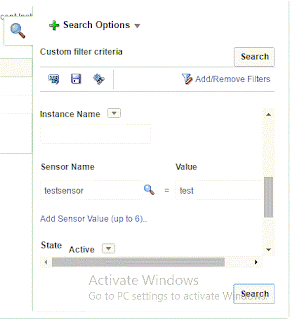
  • in Search option Click Add/remove Filter --> check Flow Instance option
  • Add the sensor you want and Search instances